# Manage Invites in Medusa Admin
In this guide, you'll learn how to manage invites in your store.
## Add Admin Users through Invites
To add a new user to your team, you must invite them. The user gets a notification of the invite to sign up, but you can also manually send them the invite link to sign up.
The form of notification sent (for example, an email) depends on what's configured in your store. If you're unsure about this, contact your technical team to configure it for you.
***
## Invite a User
To send an invite to a user:
1. Go to Settings → Users.
2. Click the Invite button.
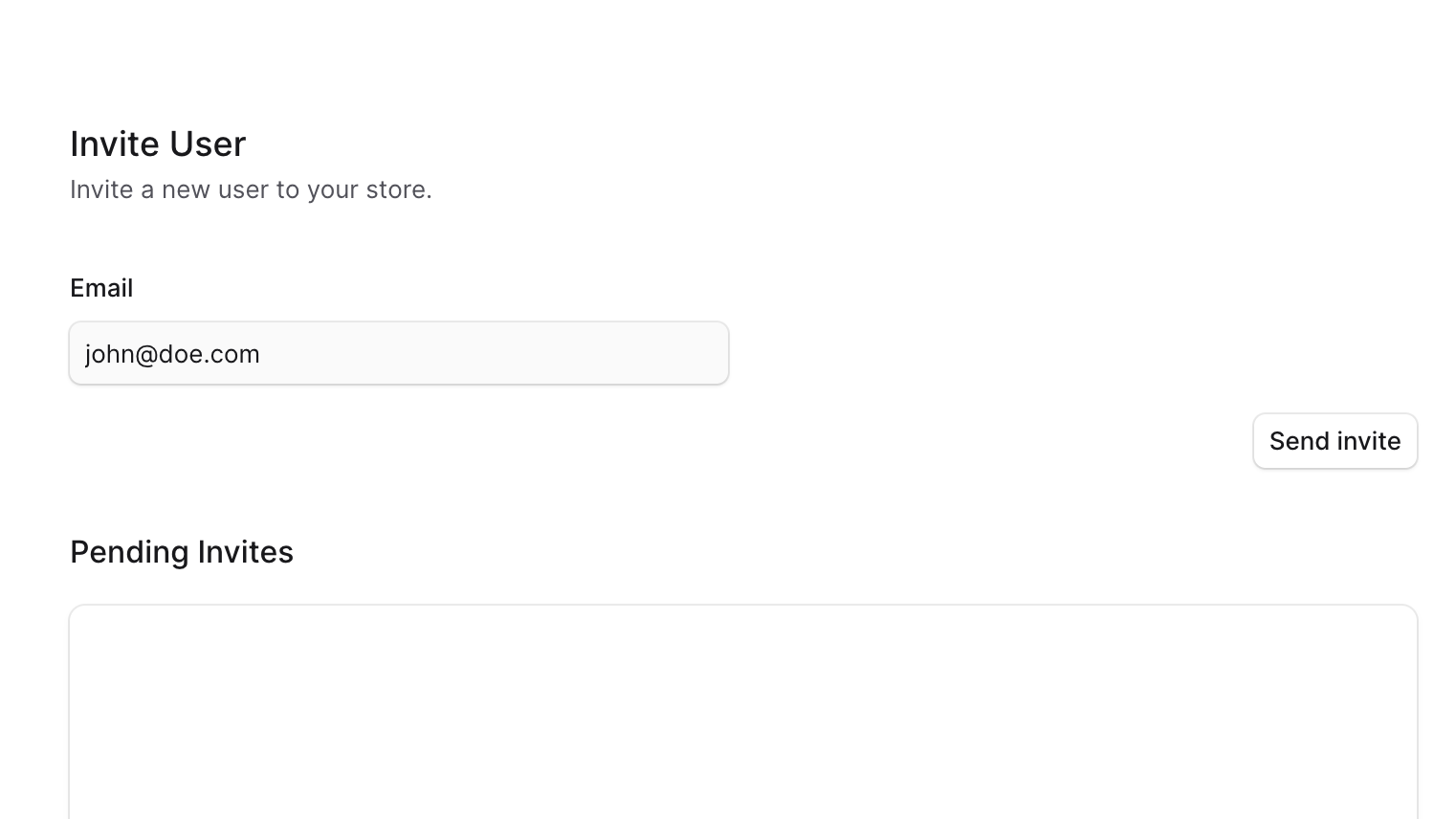
3. Enter the user’s email.
4. Once done, click on the "Send invite" button.
***
## View Pending Invites
To view pending invites:
1. Go to Settings → Users.
2. Click the Invite button.
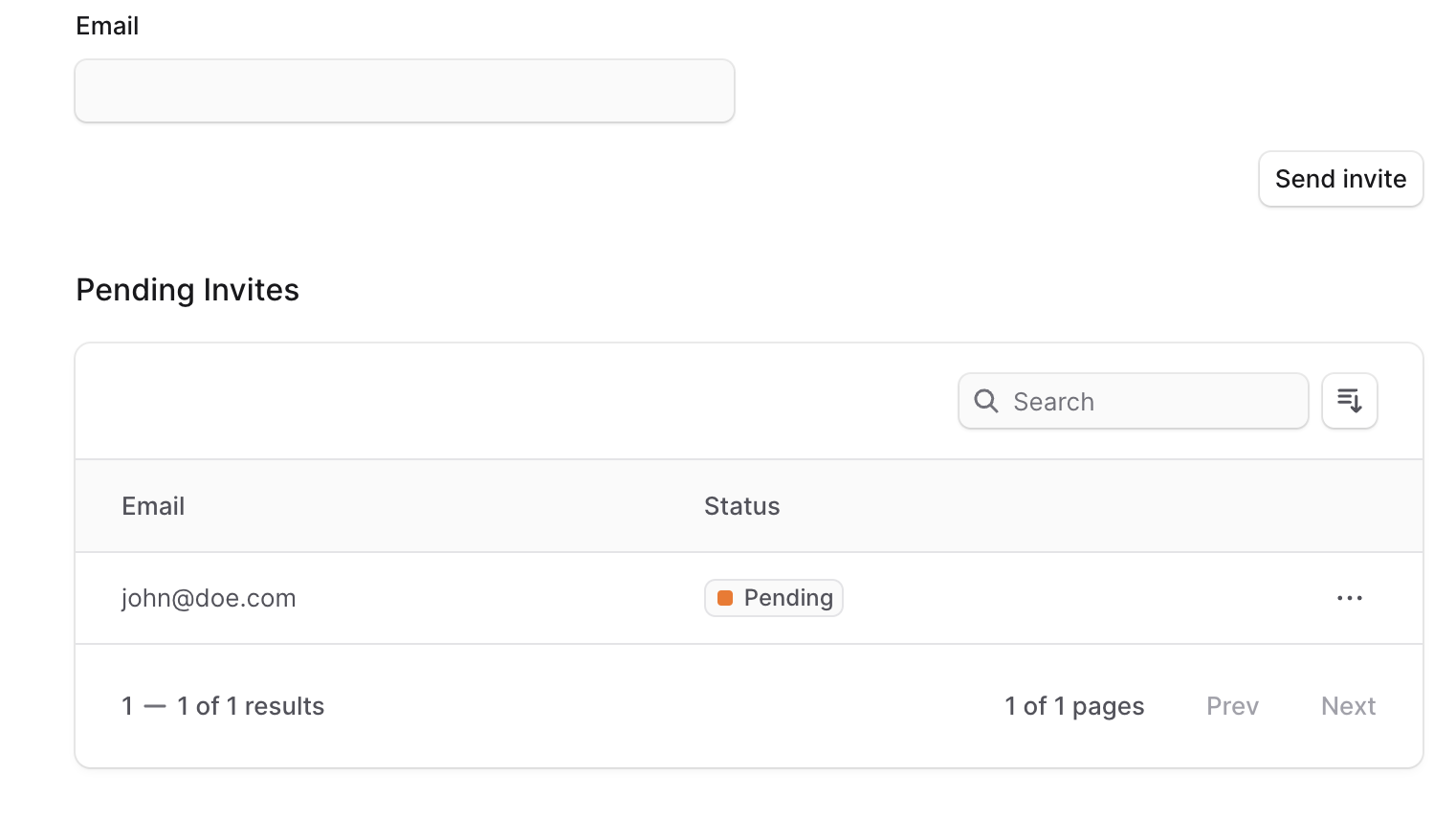
3. Below the form, you'll find a Pending Invites table with all the invites that haven't been accepted yet.
***
## Resend an Invite
You can resend an invite if the user hasn't received it, they lost their link, or the invite has expired.
To resend an invite to a user:
1. Go to Settings → Users.
2. Click the Invite button.
3. In the Pending Invites table, find the user to resend their invite and click on the icon.
4. Choose "Resend invite" from the dropdown.
A notification will be sent to the user as configured by your technical team.
***
## Get Invite Link
In addition to sending the user an invite, you can copy the invite link and send it manually to the user.
To copy the invite link:
1. Go to Settings → Users.
2. Click the Invite button.
3. In the Pending Invites table, find the user to resend their invite and click on the icon.
4. Choose “Copy invite link” from the dropdown.
You can then send this link to the user to sign up.
***
## Delete Invite
Deleting an invite will revoke the invite and the user won't be able to sign up using that invite link.
To delete an invite:
1. Go to Settings → Users.
2. Click the Invite button.
3. In the Pending Invites table, find the user to resend their invite and click on the icon.
4. Choose Delete from the dropdown.
5. Confirm deleting the invite by clicking the Delete button in the pop-up.