# Manage Product Types in Medusa Admin
In this guide, you’ll learn how to manage product types in the Medusa Admin.
## View Product Types
Product types are useful to group products by a general type, such as "Physical" and "Digital" product types.
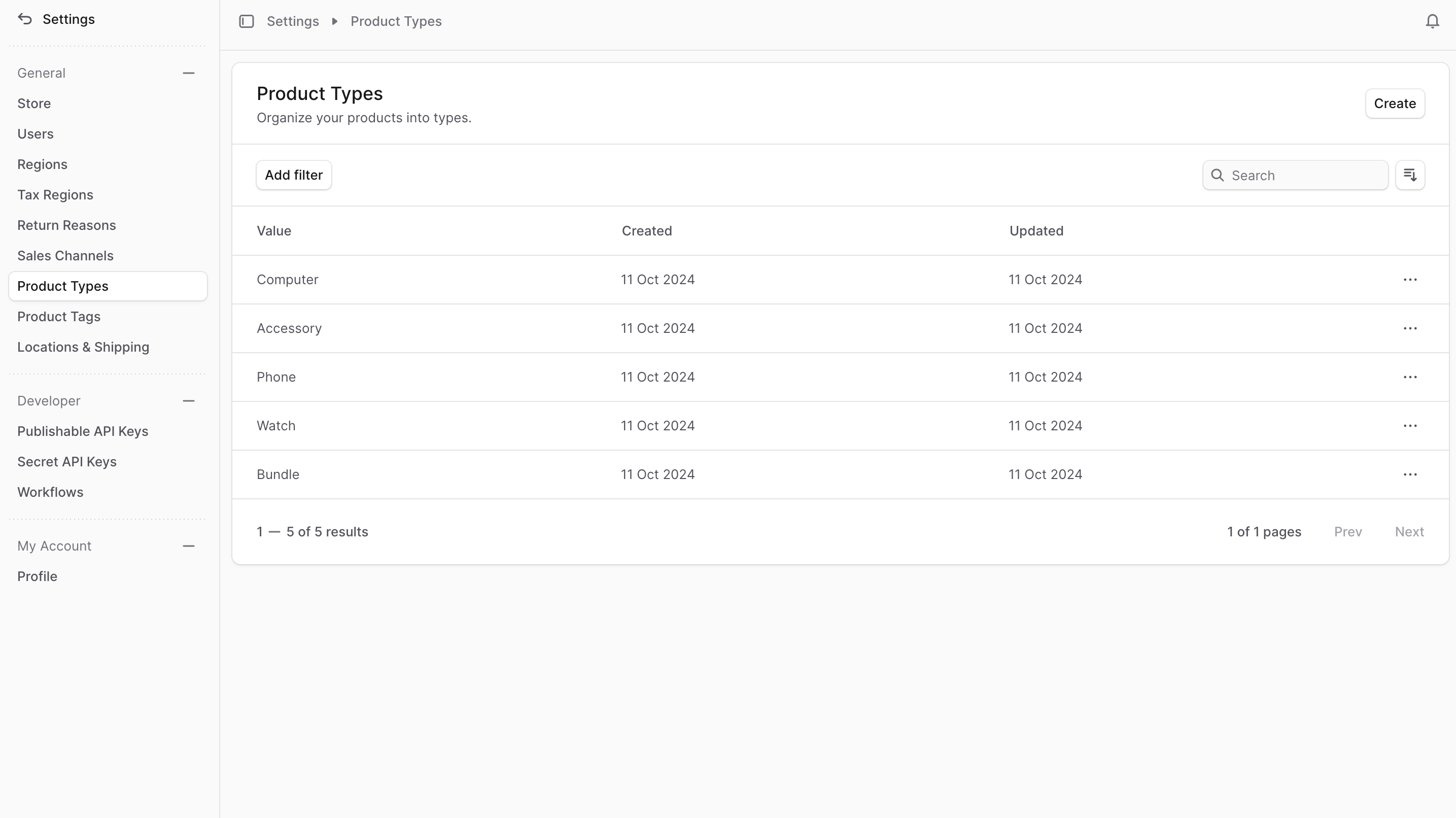
To view product types in your store, go to Settings → Product Types. Here, you can see a list of all the product types you have set up in your store. You can also search, filter, and sort the product types to find the one you are looking for.
***
## Create Product Type
To create a product type:
1. Go to Settings → Product Types.
2. Click the Create button at the top right.
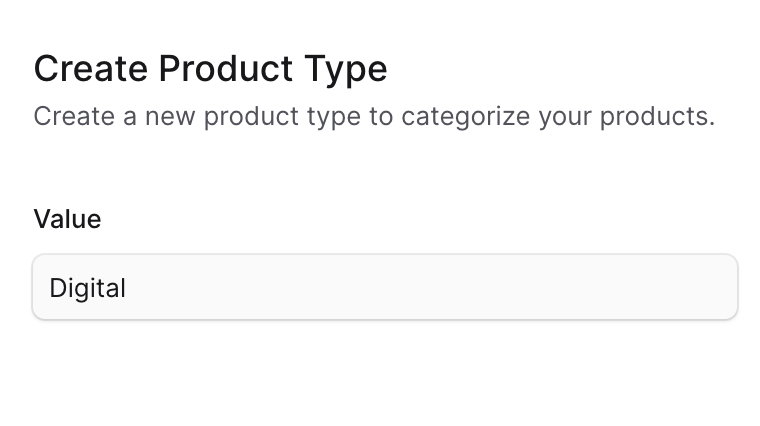
3. In the form that opens, enter a value for the product type in the Value field. For example, "Digital".
4. Once you're done, click the Create button.
***
## View Product Type Details
To view the details of a product type:
1. Go to Settings → Product Types.
2. Click on a product type from the list.
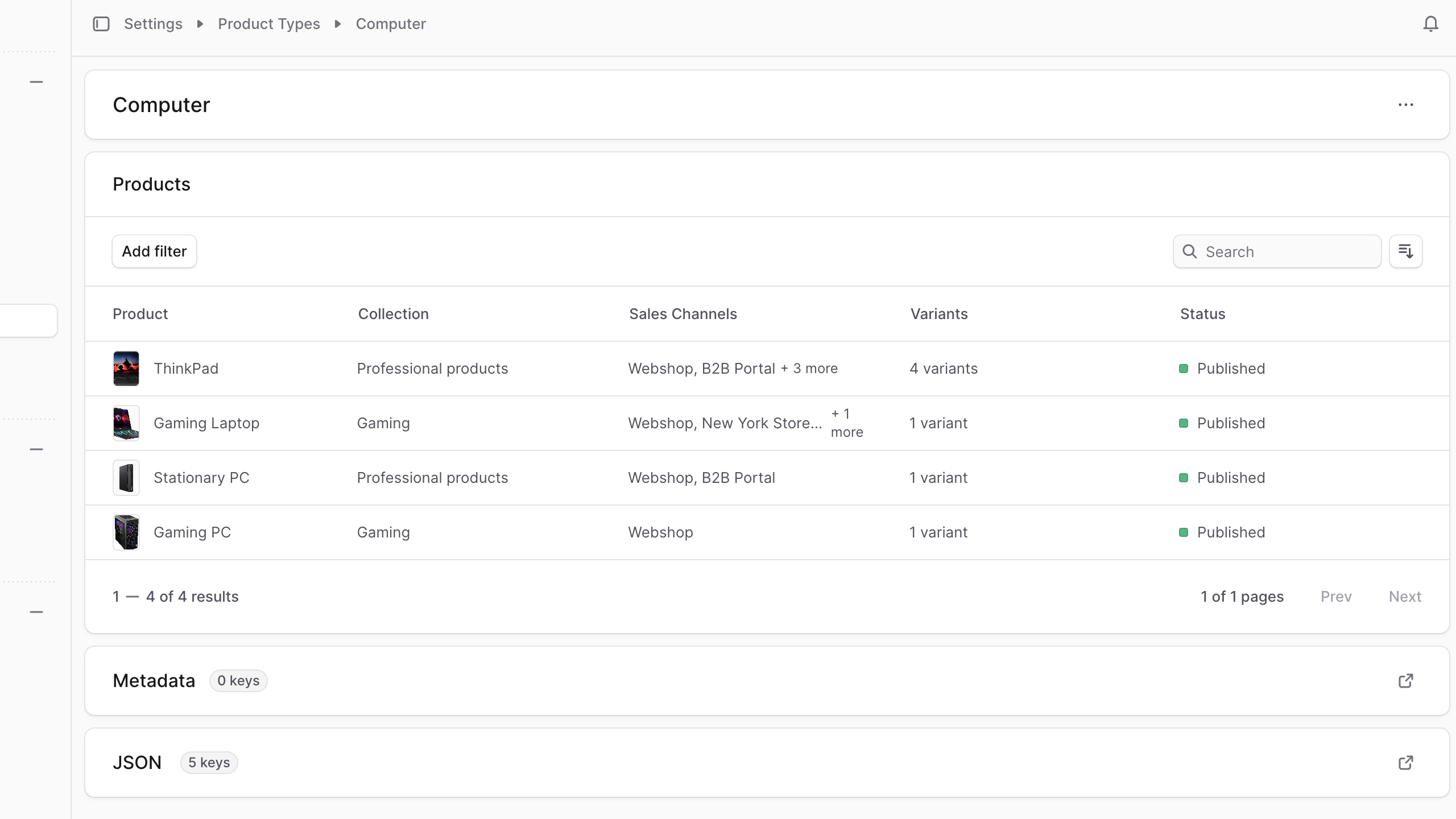
This opens the product type's details page where you can also manage the product type.
***
## Edit Product Type Details
To edit the details of a product type:
1. Go to the product type's details page.
2. Click the icon at the top right of the first section.
3. Choose Edit from the dropdown.
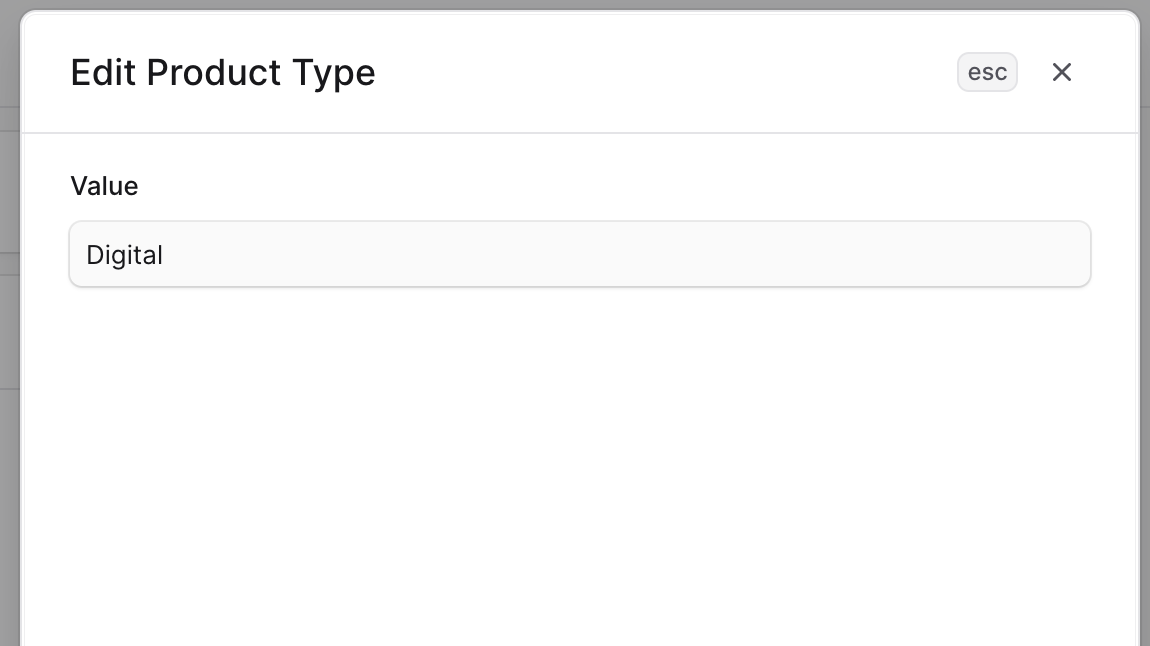
4. In the side window that opens, you can edit the product type's value.
5. Once you're done, click the Save button.
***
## Manage Products in Type
You can manage the type of a product in the [product's details page](https://docs.medusajs.com/products/edit#manage-product-organization).
***
## Manage Product Type Metadata
Metadata is custom data that can be associated with the product type in key-value pairs. This is usually used by developers for custom integrations or to store additional information about the product type.
To edit the product type's metadata:
1. Click the icon at the right of the "Metadata" section.
2. In the side window that opens:
- Manage the key-value pairs in the table.
- To add a new row of key-value pairs before or after a row:
- Hover over the row and click the icon at its right.
- Choose "Insert row above" or "Insert row below" from the dropdown.
- To delete a row of key-value pairs:
- Hover over the row and click the icon at its right.
- Choose "Delete row" from the dropdown.
3. Once you're done, click the Save button.
***
## Delete Product Type
Deleting a product type is irreversible.
To delete a product type:
1. Go to the product type's details page.
2. Click the icon at the top right of the first section.
3. Choose Delete from the dropdown.
4. Confirm the deletion by clicking the Delete button in the pop-up.